The order management page shows you the order summary, the items purchased, their number and corresponding amount, as well as the amount paid for shipping, the discount (if applicable), and taxes paid. The amount received and the balance pending receipt (if applicable).
Table of contents
Modify an order
Cancel an order
Edit an order Summary
Capture a payment
Refund a payment
Ship items
Mark an order as Delivered
Edit customer information in the order
View order activityConsulter l'activité dans la commande
Modify an order
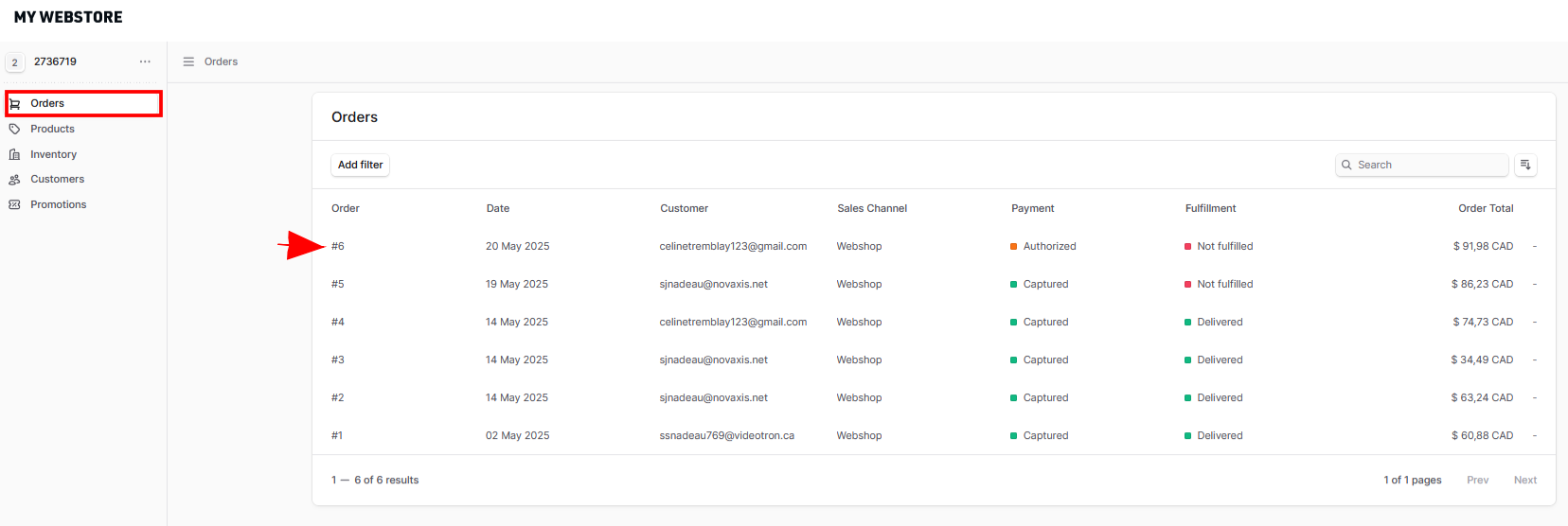
- From your store's admin, go to Store → Orders.
-
Double-click on the line of the order you wish to modify.
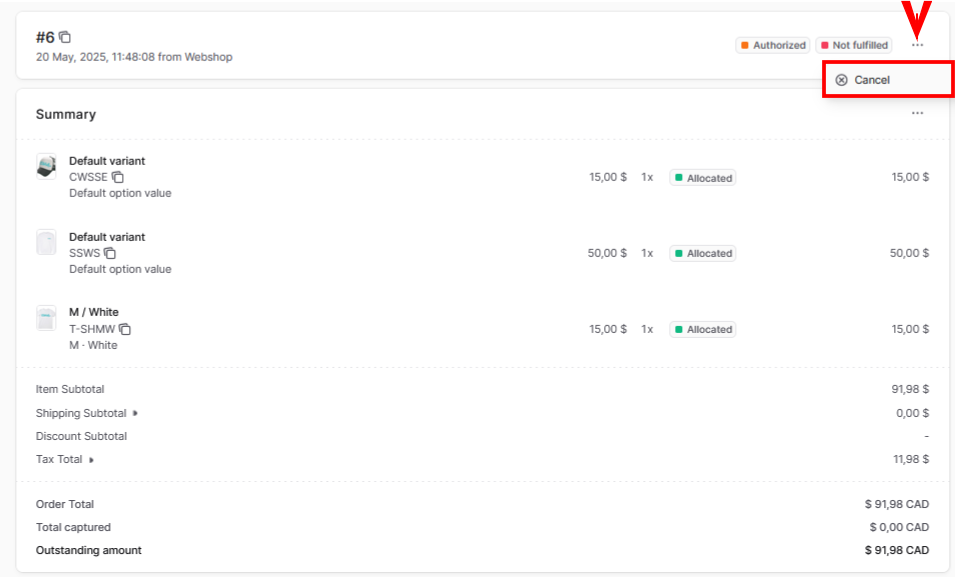
Cancel an order
- In the window with the order number, click the three-dot icon on the right and click Cancel.
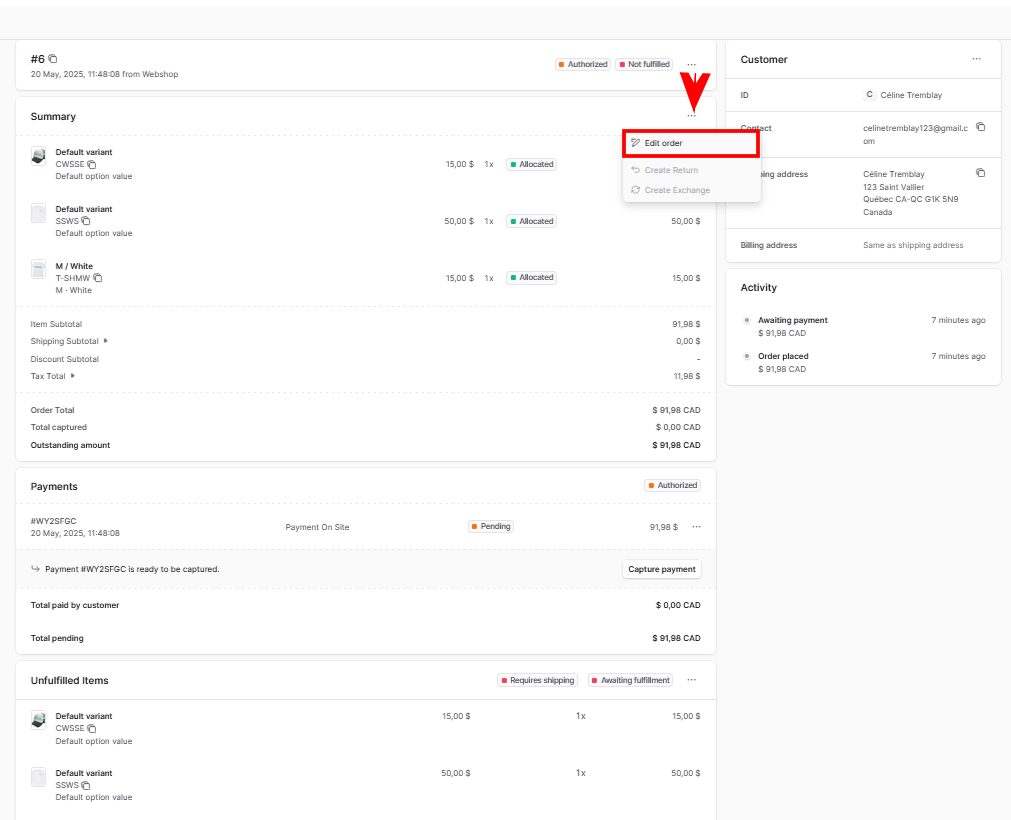
Edit the order summary
- In the Summary window, click the three-dot icon on the right and click Edit order.
- In the Edit order window, here are your editing options:
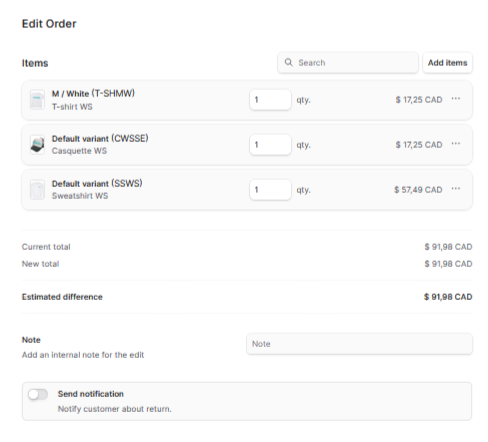
- Add Items: Click on it to add more products to the order.
- Search: Enter the name of the product you need to locate.
- Add a note: Enter a comment in the order.
- Send a notification: If a return has been requested, notify the customer regarding the status of the return.
Capture a payment
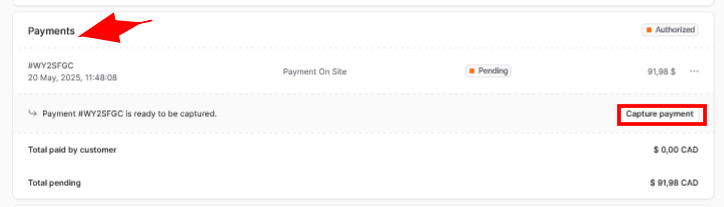
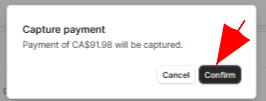
- In the Payments window, you can Capture the payment.
Refund a payment
- If a payment has already been Captured, you can Refund it.

Ship items
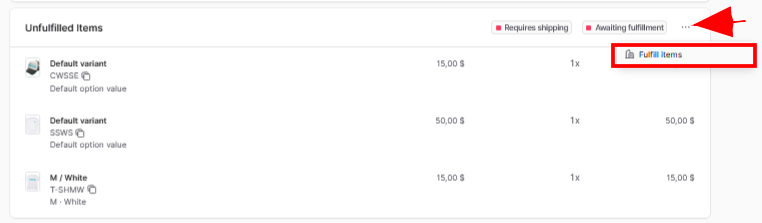
- If you have received payment, go to the Unshipped Items window, click the three-dot icon on the right and click Fulfill Items.
- Click Create Shipment.
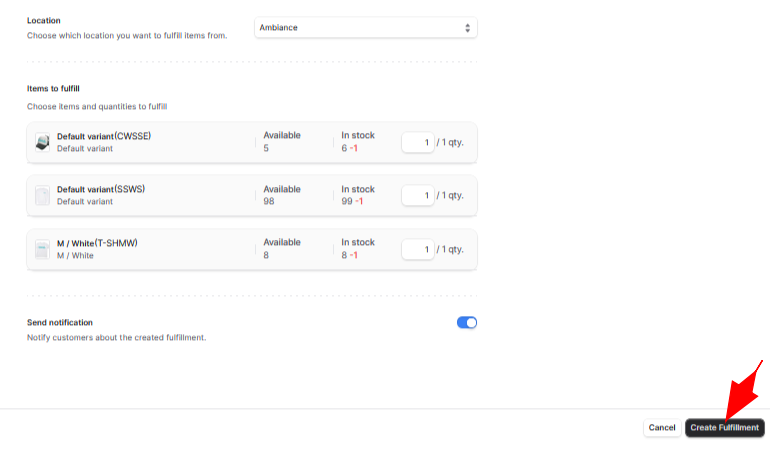
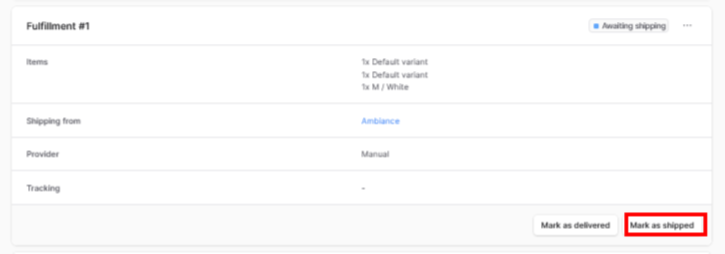
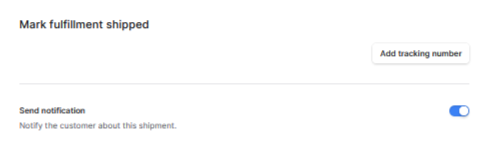
- On the Fulfillment window, click Mark as shipped at the bottom of the window.
Mark the order as Delivered
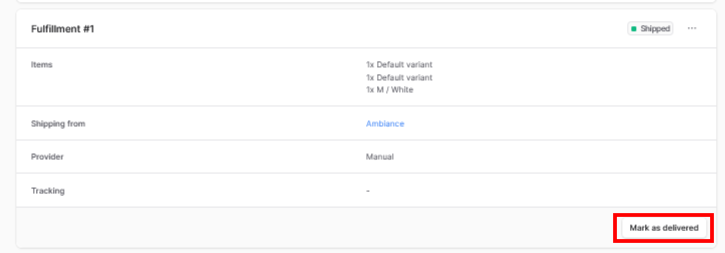
- Once you have received confirmation that the order has been delivered or that it has been picked up in store, click Mark as delivered at the bottom of the window.
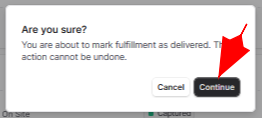
- The "Are you sure? You are about to mark fulfillment as delivered. This action cannot be undone" pop-up will appear.
- Click Continue.
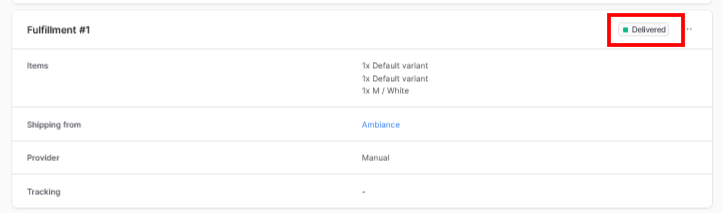
- Your order status will be shown as Delivered.
Edit customer information in the order
- In the Customer window, click the three-dot icon on the right. Here are your editing options:
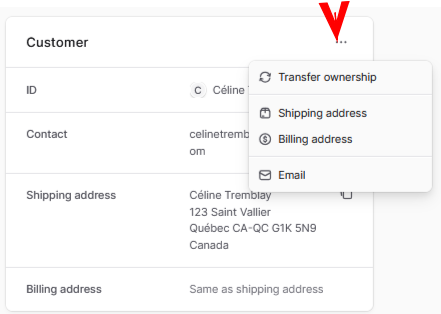
- Transfer ownership.
- Shipping address.
- Billing address.
- Email.
View order activity
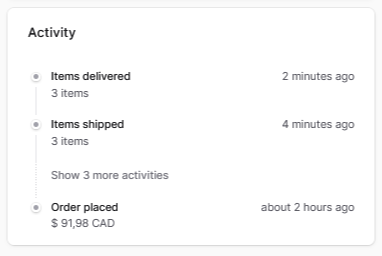
In the Activity window, you'll see a list of actions performed on the order.
To learn more: Manage orders →